Print
Print
 Home >
"How do I take a mobile scan from Iphone/ Ipad device from M6500/M6550/M6600 (with “W”) Series Print
Home >
"How do I take a mobile scan from Iphone/ Ipad device from M6500/M6550/M6600 (with “W”) Series Print
File Number:FAQ20M-11V119
How do I take a mobile scan from Iphone/ Ipad device from M6500/M6550/M6600(with “W”) Series Printer?
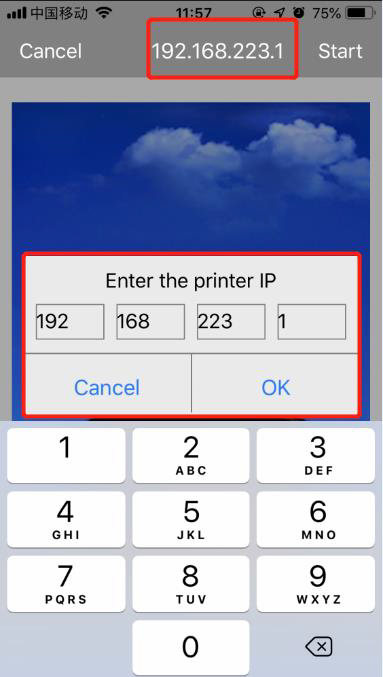
Step1: Find SSID and Hotspot IP Address, you can check it on your wifi configuration information page of your printer ( Press on the control panel :Menu setting→ Information Report→ Prt wifi conf.) We will take an example as below:
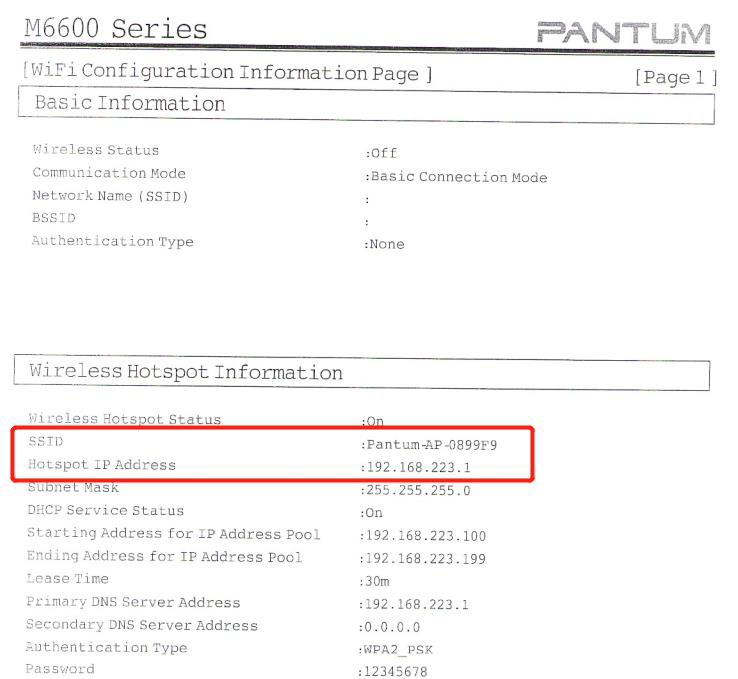
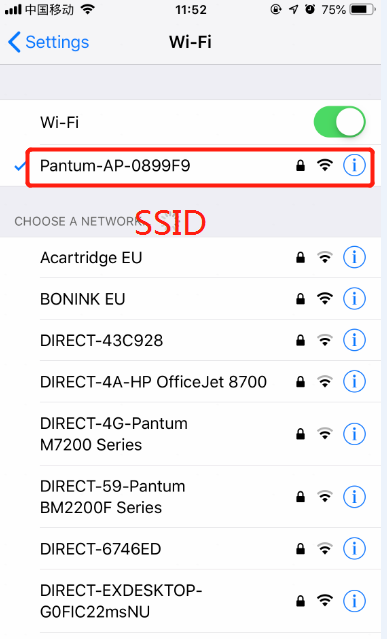
Step2: Make sure that the printer "Wi-Fi " button is turn on, then connect the IOS mobile device with wireless network of the printer SSID, the default password is 12345678.
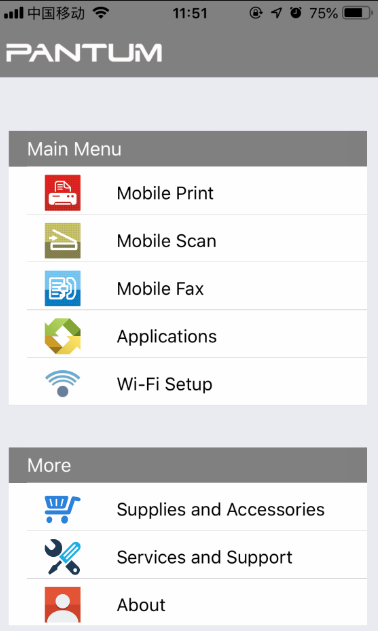
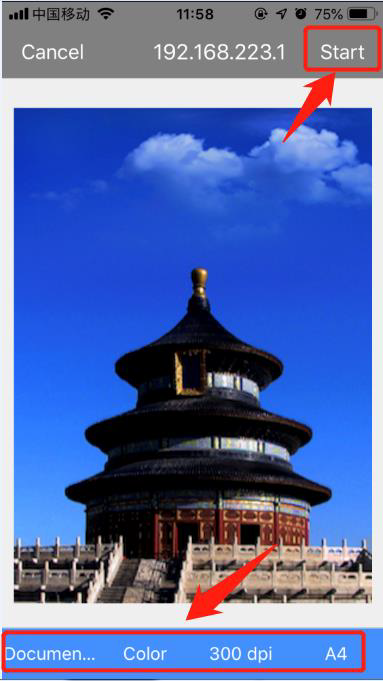
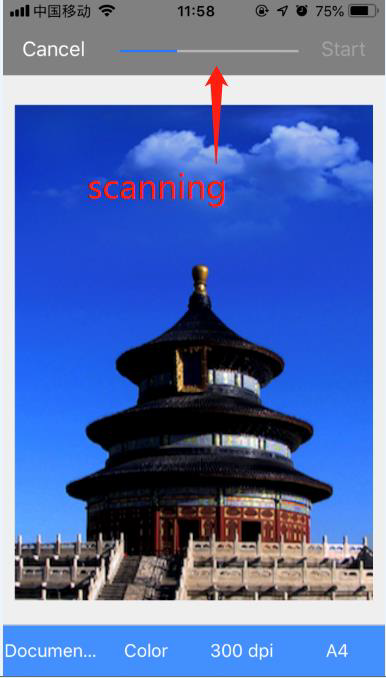
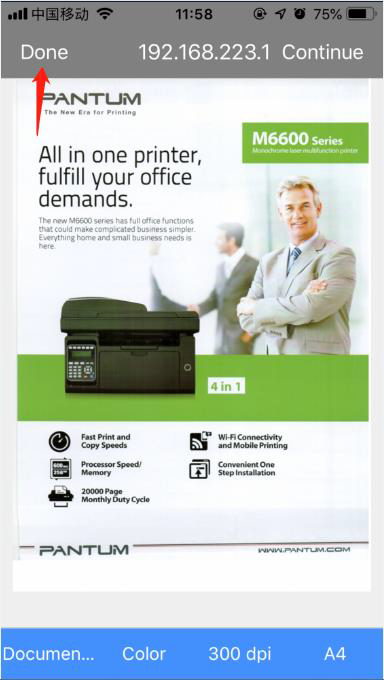
Step3: Open the ”PANTUM” application , click “mobile scan”, then click on “Scan”